 aisma
aisma
Real Aisma edit
One garment photo, one dance.
A real Aisma edit of a 15-second take, made from the photo and brief printed below. Full Aisma edit plays the complete take.
Example requestchange her tracksuit to this sculptural scarlet suit
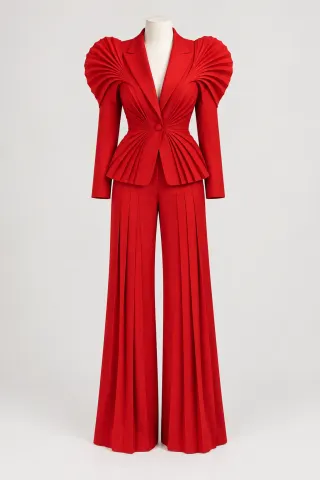
To change clothes in a video, open the clip in an AI video editor like Aisma, add a photo of the new garment and write one sentence, such as “put the suit in Photo 1 on her.” Aisma dresses the person in it across the whole clip, with their face and moves unchanged. Words alone work too when no exact piece has to match.
Paid editing · MP4 or MOV · 2–60 seconds · Review credits before generating.
Updated October 19, 2026
One garment photo, one dance.
A real Aisma edit of a 15-second take, made from the photo and brief printed below. Full Aisma edit plays the complete take.
Example requestchange her tracksuit to this sculptural scarlet suit
What stays
What changes
What you bring
A clip + one clear garment photo + one sentence
THREE WAYS
An outfit change in a photo is one picture. In a video, the new clothes have to follow every fold, turn and arm swing for the whole clip, and look the same in the last frame as in the first.
That leaves three realistic options, and the right one depends on whether you still have the person, the place and the time to film again.
| Reshoot | Rotoscope in After Effects | Aisma | |
|---|---|---|---|
| What you do | Film the take again in the new outfit | Isolate the garment with Roto Brush, then recolor or grade inside the matte | Add a garment photo and write one sentence |
| A different cut or fabric | Yes, it’s real clothing | Hard: the matte keeps the old outline | Yes, from the photo |
| The same performance | A new take is never identical | Yes, it’s your footage | Yes, the moves come from your clip |
| What you need | The person, the place and the outfit, all again | After Effects and patience with mattes | The clip, the photo and credits |
Only after a new color? Our shirt color guide compares quicker manual options, such as the HSL Secondary controls in Adobe Premiere.
METHOD 1 · AISMA
MP4 or MOV, 2–60 seconds, up to 500 MB. Head-to-toe framing and steady light give the new clothes the most to work with.
Upload the garment photo and say what it replaces, like “put the jacket in Photo 1 on him.” Then say what must stay.
Choose 720p or 1080p. The credit price is on the Generate button before anything renders, and the result goes to your Library.
Below is the brief behind the dance at the top, exactly as we sent it, beside the garment photo it refers to. The short request under the player says the same thing the way most people would type it.
It follows a pattern that works for any outfit: name the old clothes, point to the new ones in the photo with a few words about their shape, list what stays, then add one line about movement.
Photo 1 shows the suit on a headless dress form against a plain backdrop, and the edit took the suit without the form. We sent the brief once and kept that first result.
Try it on your videoThe brief we sent, word for word
Replace the dancer's grey tracksuit with the sculptural scarlet-red pantsuit with pleated architectural shoulders shown in Photo 1. Keep the same woman, face, hairstyle, dance movements, body position, room, camera and white sneakers. Make the new clothing move naturally with her dance.
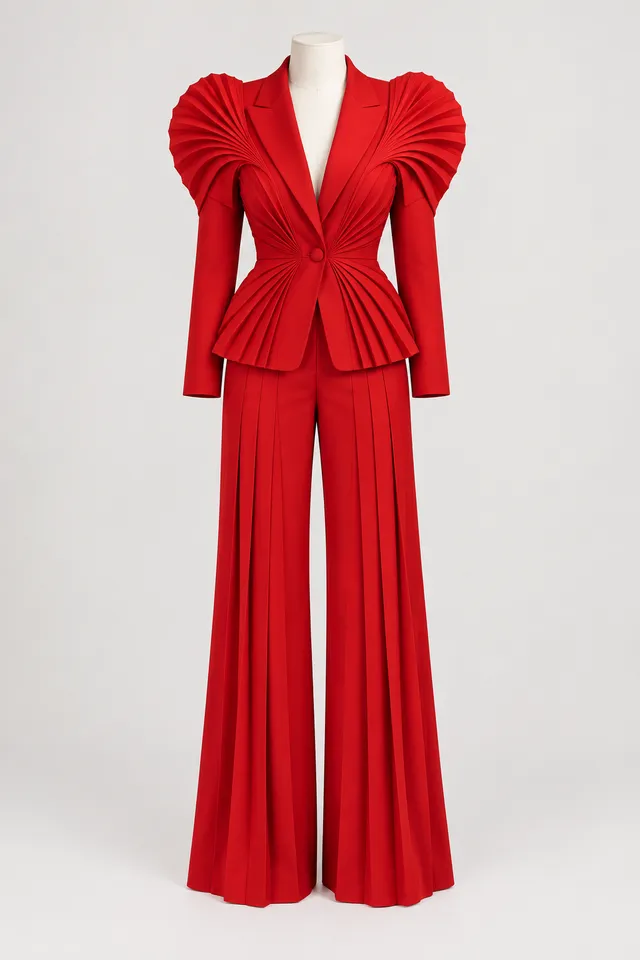
15 seconds · 720p · one garment photo · first run kept
THE PHOTO
Aisma copies what it can see, so the photo decides most of the result. Use one where the whole piece is in frame and in focus, against a plain background, in light that shows its real color. Laid flat, on a hanger or on a dress form all work.
If the only photo you have shows someone wearing it, say so in the request, for example “use just the jacket from Photo 1,” so the person in the photo stays out of your video.
For an outfit built from several pieces, upload each one and number them: “the jacket in Photo 1 and the pants in Photo 2.” Aisma takes up to 10 photos in one edit. JPEG, PNG and WebP all work, at 20 MB or less per photo.
METHOD 2 · AFTER EFFECTS
Changing clothes manually starts with isolating them. In After Effects, the Roto Brush tool does that: you paint a stroke through the garment, After Effects separates it from the background, and you correct the selection as it carries from frame to frame.
With that matte you can recolor the garment, for example with the Change To Color effect, or make it lighter or darker. A different garment is another story. The matte keeps the old outline, so turning a hoodie into a long coat means animating the new fabric yourself.
METHOD 3 · RESHOOT
If you can get the person, the place and the light back, a reshoot gives you real clothing that moves the way it really does. It also gives you a new performance: a dance, a laugh or a toast never happens exactly the same way twice.
That’s where an edit earns its place. It keeps the take you already like and changes only the clothes.
NO PHOTO?
Words are enough when no exact piece has to match. On our outfit page, a man on a sunset terrace swaps a beige linen jacket for black leather, and the whole request was nine words long, with no photo. Two of the ten dance looks there were also described in words alone.
Give the garment, the color and one detail of the cut, like “a navy wool peacoat with brass buttons.” Add a photo when it has to be one specific item, such as something you sell.
WHAT TO CHECK
Play the result at full size. In our dance edit, the pleated fans from the photo keep their shape as her arms go up, and her white sneakers, kept by the brief, show under the wide new trouser legs.
Then look for things the photo didn’t have, such as extra lettering, a logo or a pocket. If one part misses, Edit a clip redoes just that part, at a price you see first.
For a shop listing, treat the result as a styling preview. It isn’t sized to the person, so compare it with the real garment before you post.
REQUESTS TO BORROW
Ideas to adapt, not results shown on this page. Change the garments and photo numbers to fit your footage.
Shopify apparel store
Put the linen shirt in Photo 1 on him. Keep his jeans, his face and his walk.
Etsy knitwear shop
Change her sweater to the cardigan in Photo 1. Keep the mug in her hands.
Homecoming dance
Change his hoodie to the navy suit in Photo 1 with a white shirt. Keep the dance floor and the lights.
Realtor intro video
Change my T-shirt to the blazer in Photo 1. Keep my face and the living room behind me.
Fourth of July cookout
Change his gray tee to the striped shirt in Photo 1. Keep the grill and everyone around him.
Two people, two outfits
Give the woman in the middle the dress in Photo 1 and the man on the right the suit in Photo 2.
Two people in the shot? Say who wears which photo. If it’s still ambiguous, Aisma on the web can ask you before it renders, and if you don’t reply within about five minutes, it goes ahead on its own reading.
WHAT IT COSTS
A FEW GOOD QUESTIONS
Yes. Describe the new outfit with its color and one detail of the cut, and Aisma works from that. Add a photo when one specific item has to match, like a piece from your store.
Footage where the clothes stay easy to see from start to finish. Our dance clip was shot on a fixed camera in a bright room, with the dancer visible from her hair to her sneakers almost the entire time, so every part of the suit had something to cover. Folded arms or a bag strap across the outfit hide what you want changed.
Yes, because the movement comes from your clip. Our brief asks for it outright: “Make the new clothing move naturally with her dance.” Long or loose pieces, like a floor-length gown, cover more of the body than the original did, so some footwork can disappear under the hem.
Yes, if it’s your product or you have permission to use the photo. A clean product shot of the whole garment works well. Upload it as JPEG, PNG or WebP, up to 20 MB.
Their face, hair and movement come from your clip, and a keep list makes that explicit, as ours did: “Keep the same woman, face, hairstyle, dance movements…” In quick arm moves, check the hands, which can land a little differently for a frame or two.
Yes. Open Edit a clip on the finished video, pick the part and say what should differ, such as “the collar should be white, as in Photo 1.” That part’s price shows before it runs.
Yes. Only your account can see the clip, the garment photo and the edit, and the finished video waits in your Library. Without a weekly plan it’s kept for 72 hours, so save your copy.
MP4 or MOV files of 2 to 60 seconds, up to 500 MB, shot vertical, square or horizontal. You can upload in the browser or in the iPhone and Android apps, and the result keeps your clip’s length, framing and sound.
Yes. The dance at the top is a real Aisma edit made from one garment photo and the brief printed on this page. Before → After views show the original and the edit at the same moment of the clip, never cropped, sped up or retouched. Your result depends on your clip and request.
YOUR NEXT EDIT STARTS HERE
Paid editing · MP4 or MOV · 2–60 seconds · Review credits before generating.